Table of contents
What Landfall does
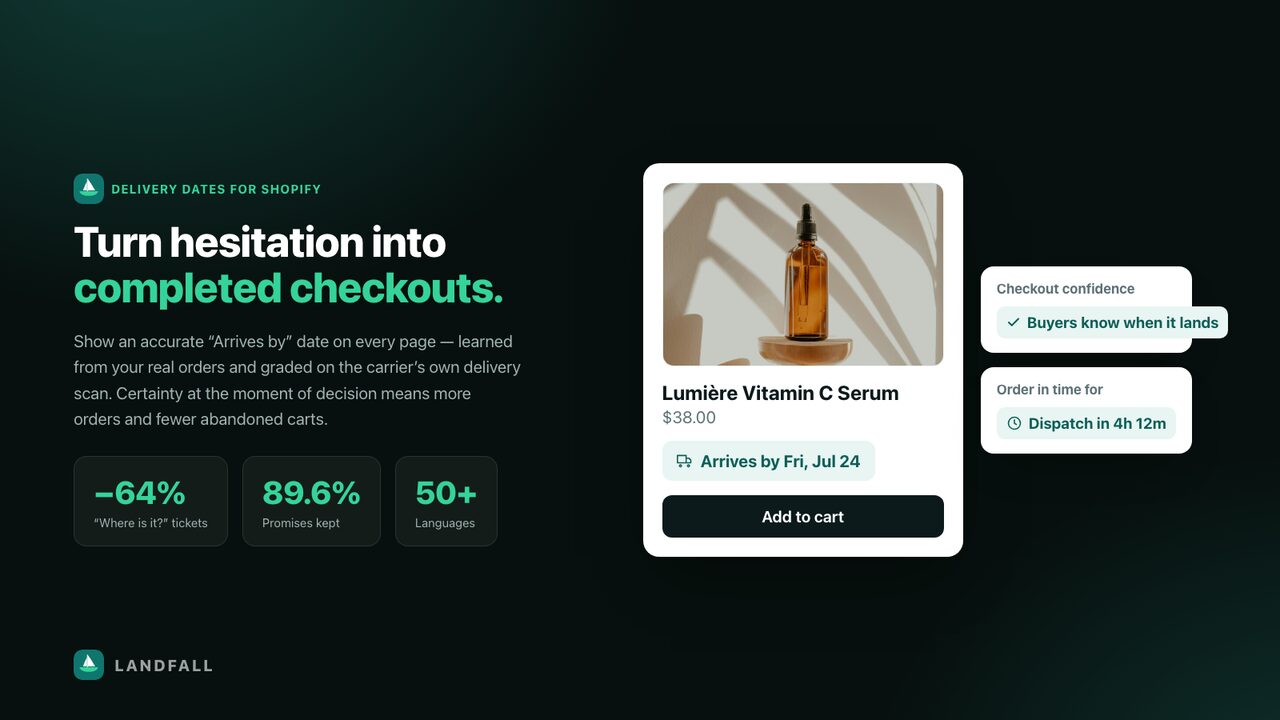
Landfall shows your shoppers an accurate “Arrives by” delivery date — one that is learned from your store’s own delivery history rather than typed in by hand, and then graded against the carrier’s real delivery scan so you always know whether the dates you show actually hold up.
Most delivery-date apps ask you to enter lead times and hope they’re right. Landfall reads your last 60 days of fulfilments, models every shipping lane, and keeps the numbers current on its own. You can still override anything you want — but you don’t have to configure a thing for it to work.
Key features
A quick map of everything the app does. Each links to its full section below.
How the engine works
Understanding this makes every other setting make sense.
1. It reads your history
On install (and continuously afterwards) Landfall reads your fulfilments from the last 60 days. For each shipment it derives two numbers:
- Processing time — order placed → carrier’s first scan (how long you take to dispatch).
- Transit time — carrier’s first scan → delivered (how long the carrier takes).
These are modelled per destination zone (country, and US states where volume allows) and per carrier. That pairing is what we call a lane.
2. It picks an honest number
For each lane Landfall computes percentiles rather than an average, because averages hide the tail that actually causes complaints:
| Percentile | Used for | Minimum deliveries required |
|---|---|---|
p50 | “Typical” — the optimistic end of a range | 8 |
p80 | The promise — the date shown to shoppers | 20 |
p95 | “Worst case” — shown to you in Analytics | 60 |
Honest sample floors. If a lane hasn’t reached the minimum number of deliveries, Landfall shows a dash (—) instead of a number, and the storefront widget stays hidden for that lane. It would rather say nothing than say something it can’t stand behind. Thin lanes fill in as you ship more.
3. It shows the date server-side
The date is rendered in Liquid, server-side, from a single published metafield. There is no JavaScript fetch, so there’s no layout shift, no flash of missing content, and no browser-locale date bugs.
4. It grades itself
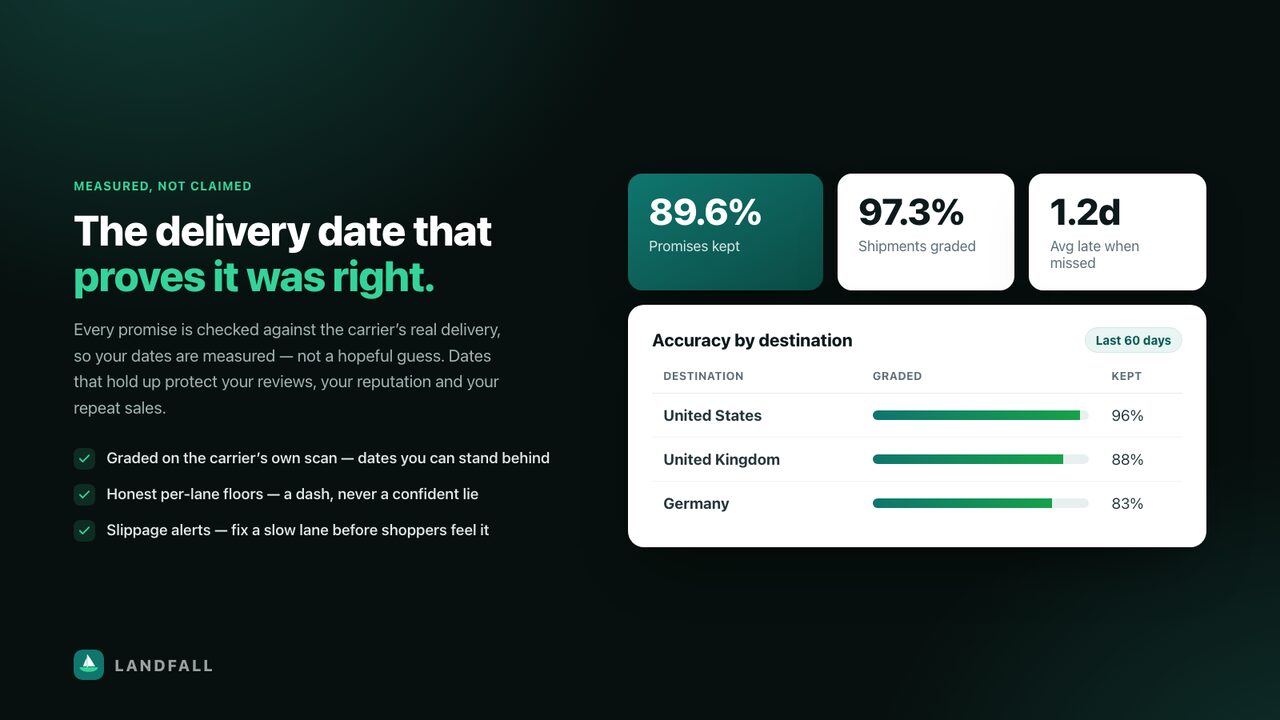
Every date shown is recorded as a promise. When the carrier reports the delivery, Landfall compares the promise to what actually happened and marks it kept or missed. That’s what powers the accuracy numbers on Home and Analytics — and the alerts when a lane degrades.
Quick start
Four steps, about five minutes. The Home page tracks your progress through exactly these.
- Install the app. Add Landfall from the Shopify App Store. On first open it analyses your last 60 days of deliveries automatically — nothing to configure.
- Turn on the app embed. In Shopify admin go to Online Store → Themes → Customize → App embeds, and enable Landfall. This lets the blocks render on your storefront.
- Add the delivery-date block. Still in the theme editor, open your Product template, choose Add block in the product-information section, and pick Delivery date. Drag it just under the price or the add-to-cart button. Save.
- Check your storefront. Open any product page. You should see the learned “Arrives by” (or “Arrives between”) date. That’s it — you’re live.
Tip. Landfall’s Home page has one-click links straight into the theme editor for steps 2 and 3, so you don’t have to hunt for them.
Verify it’s live
Three signals confirm a healthy install:
- Home checklist reads 4 / 4. The “Show the date on your storefront” step ticks automatically once a real shopper has seen the widget.
- Storefront status shows “Publishing”. On Home, the App-embed card flips from “Not detected” to “Publishing”.
- Analytics starts counting. Widget views appear under Storefront engagement within a few minutes of real traffic.
Seeing no date on a product? That is usually correct behaviour, not a bug — see Troubleshooting. The most common causes are a thin lane (below the sample floor), an excluded product, or an out-of-stock item with no restock basis.
Home
Your control room: setup progress, delivery health at a glance, and alerts.
Hero & plan
The header shows your current plan and a setup progress ring (e.g. 4/4). If you’re on anything below Premium there’s an Upgrade button that takes you to Shopify’s hosted plan picker.
The four headline metrics
| Metric | What it means | What good looks like |
|---|---|---|
| Delivery promises kept | Share of graded promises delivered on or before the date shown. | 85%+ — below 80% means your promise is too optimistic. |
| Shipments with carrier data | How much of your volume has a usable carrier delivery scan. | 90%+ — low coverage means fewer lanes can be modelled. |
| Orders analysed | Fulfilments read in the rolling 60-day window. | More is better; thin stores will see dashes on some lanes. |
| Parcels in flight | Promises made but not yet delivered — grading pending. | Informational; it rises and falls with your shipping volume. |
Alerts
Landfall raises two kinds of alert, each dismissible:
- Accuracy drop — a destination is keeping noticeably fewer of its promises (e.g. “GB is keeping only 43% of its promises across 14 orders”). Worth checking that carrier.
- Transit slip — a lane’s transit time has moved (e.g. “DE slipped from 6d to 10d”). Landfall has already widened the date; the alert just tells you why.
Setup checklist & live preview
The four-step checklist mirrors Quick start and reflects your real status — it is not a static list. Beside it, Live storefront preview renders exactly what a shopper sees on a product page with your current settings.
Resources
Shortcuts to this documentation, the changelog, developer support and direct contact.
↑ Back to topAnalytics
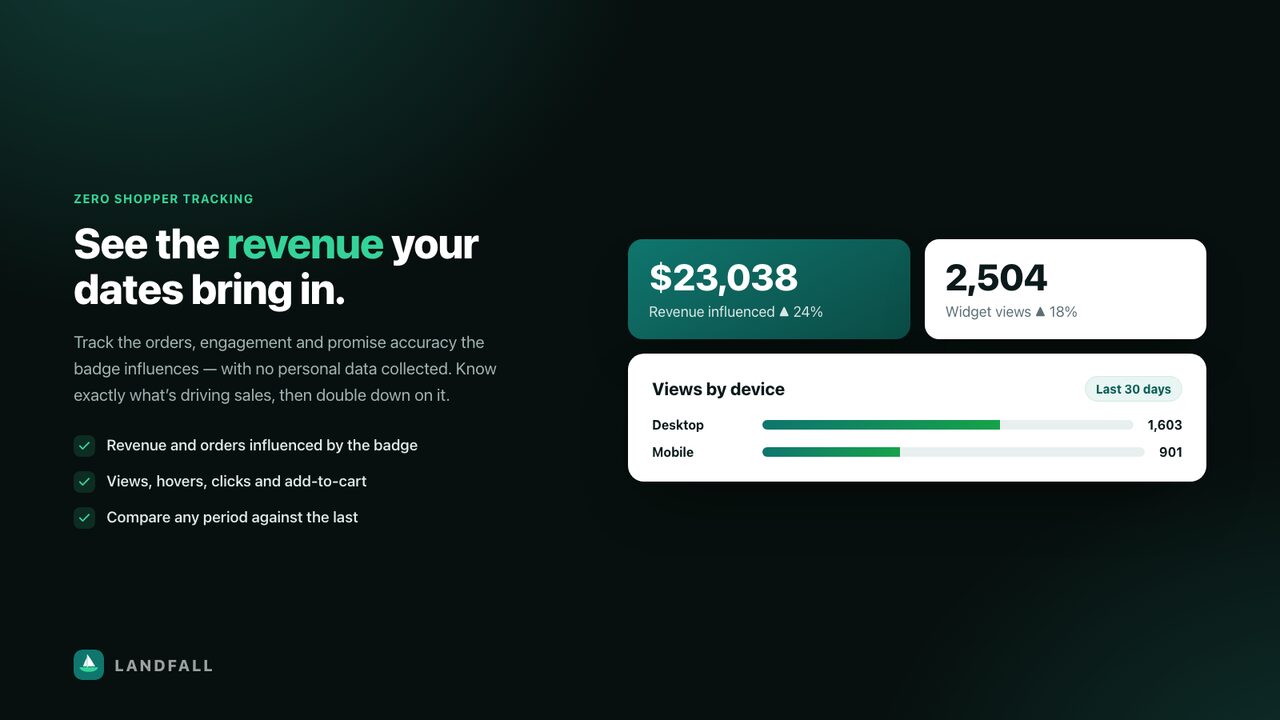
Real numbers only — engagement comes from an aggregate, no-PII pixel; revenue comes from recorded orders; accuracy comes from your deliveries. Empty means genuinely zero, never a placeholder.
Date range & comparison
- Pick a preset — 7, 30 or 60 days — or choose a custom From/To.
- Optionally set Compare to: previous period, same days last month, or same days last year.
- Press Apply. Every metric card then shows a ▲/▼ percentage delta versus that comparison window.
The sections
| Section | Contains | Use it to… |
|---|---|---|
| Business impact | Revenue influenced, orders with a delivery date, promises kept in range | Show the commercial value of the badge |
| Storefront engagement | Widget views, hovers, clicks, click-through rate, add-to-cart rate, engagement rate | See whether shoppers actually notice the date |
| Views by device | Desktop vs mobile split | Decide where to optimise placement |
| Promise accuracy | Promises kept, graded, parcels in flight, average days late when missed | Judge whether your promise is calibrated |
| Coverage & reach | Carrier-data coverage, orders analysed, kept count, active/total rules | Diagnose thin data |
| Top products | Most-delivered products by volume | See where accuracy matters most |
| Customers by country | Order share per destination | Prioritise which lanes to fix |
| Transit by lane | Destination, deliveries, typical, promise, worst case | Understand the numbers behind each date |
| Carriers | Shipments and delivery-data coverage per carrier | Spot a carrier that reports poorly |
Every card has a tooltip. Hover the small ⓘ icon for a plain-English explanation of what the metric is and how it’s calculated.
Rules optional
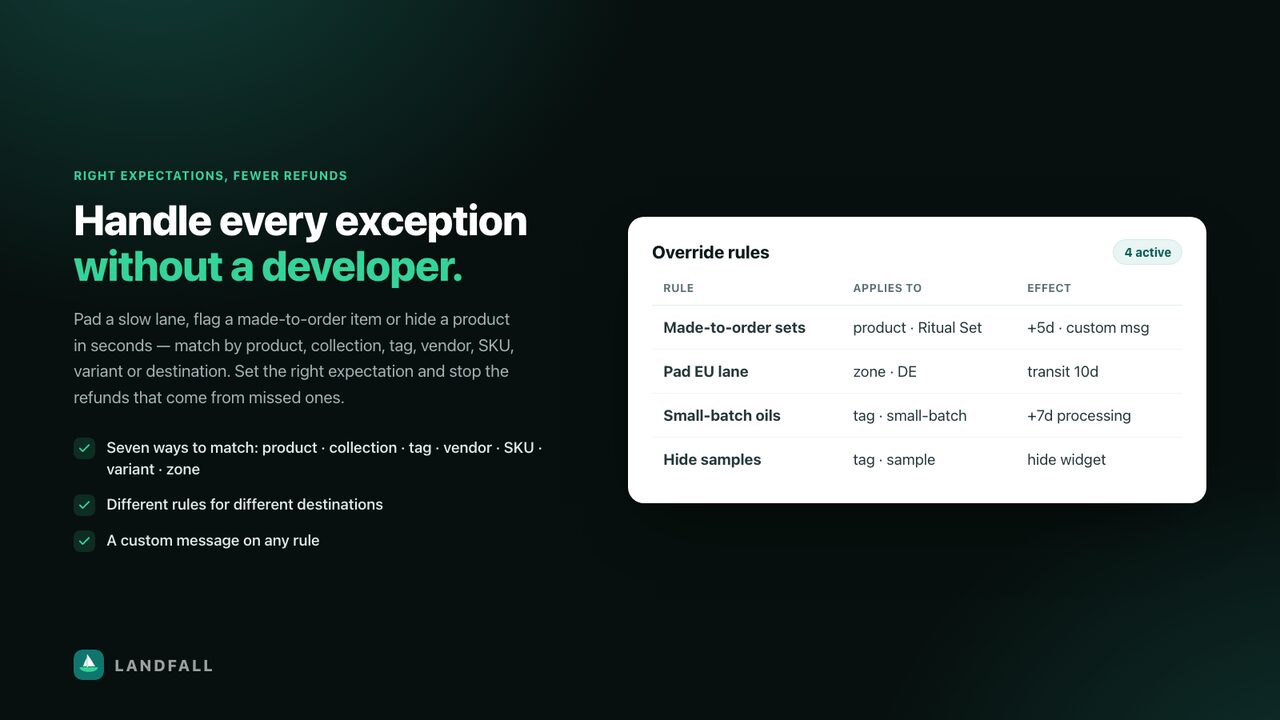
The engine works with zero rules. Add one only to override the learned result for a specific case — pad a slow lane, flag a made-to-order item, or hide the date for a set of products.
How matching works
Rules are sorted by priority (lower number runs first). The first matching, enabled rule wins for a given variant — later rules are ignored. A rule matches when both the scope and the destination zone match.
Fields
| Field | Purpose | Example |
|---|---|---|
| Name | Your own label, shown in the table | Made-to-order gift sets |
| Match type | All, product, collection, tag, vendor, SKU or variant | tag |
| Match value | The tag/vendor/SKU text, or the product/collection/variant ID | gift-set |
| Destination zone | Limit to one country/zone, or * for all | DE |
| Override processing days | Replaces the learned processing time | 5 |
| Override transit days | Replaces the learned transit time | 10 |
| Custom message | Replaces the whole line. Supports [min_date], [max_date], [date] | Handmade to order — arrives by [max_date] |
| Hide the delivery date | Suppresses the widget entirely for matches | — |
| Priority | Lower runs first | 10 |
Add a rule
- Open Rules in the app’s left navigation.
- Fill in the Add a rule form — name, match type and value at minimum.
- Set the effect: processing days, transit days, a custom message, or “hide”.
- Give it a priority if order matters, then press Add rule.
- The rule publishes to your storefront immediately — refresh a matching product to confirm.
Rule limits apply per plan (Free 3, Startup 15, Growth 50, Premium unlimited). The page shows usage as “X of Y used”. Deleting always works, even when you’re over the cap.
Exclude products
Hide the delivery date on products where a date makes no sense.
Typical cases: digital downloads, gift cards, pre-orders with an unknown date, or services.
- Open Exclude products.
- Press Add products — Shopify’s product picker opens.
- Select the products to hide, then confirm.
- They appear in the Hidden products list; the widget stops rendering for them right away.
Prefer tags for bulk. Excluding by product is per-item. To hide a whole class of products, set an exclude tag in Settings → Hide the widget and tag the products — it scales better and doesn’t count against your rule cap.
Settings
Everything about how and where your dates appear. The right-hand column shows app status, a live preview, and a sticky Save button.
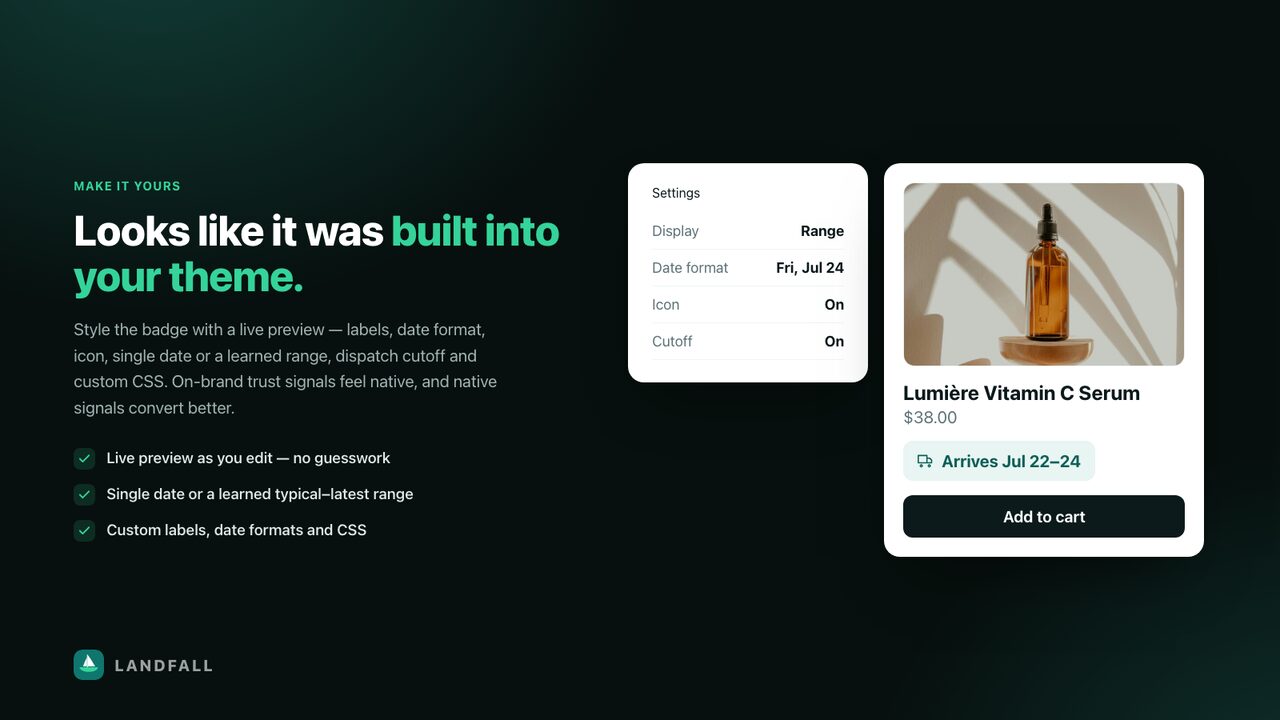
Dispatch cutoff
Orders placed before this time (your store’s local time, HH:MM) are treated as dispatching the same business day. This powers the countdown in the Order-by cutoff block and shifts the computed date.
Example: set 14:00 if you hand parcels to the carrier at 2pm.
Week-offs & holidays
Dates when your warehouse is closed. Transit still reflects the carrier’s real behaviour — this only affects your side. Enter dates one per line, e.g. 2026-12-25.
Hide the widget
Products carrying any of these tags never show a date. One tag per line — a bulk alternative to Exclude products.
Out-of-stock restock lead
For a sold-out variant, Landfall uses Shopify’s own incoming inventory date if you’ve set one; otherwise it falls back to this number of days. Leave it blank to hide the date entirely when an item is out of stock — often the most honest choice.
Store pickup
Enable to show a “Ready for pickup” date. Configure the ready-in business days, the label wording, and your location name. Pair it with the Pickup ready date block.
Warehouses (origin routing)
If you ship from more than one location, list them as Name | countries | processing days, one per line. Landfall picks the warehouse serving the shopper’s country and applies its handling time; a line with no countries becomes the default.
Language labels
Auto-translation is on by default in 57 languages — see Multi-language. Add a line here only to override the wording for a specific locale:
Custom CSS
Restyle the widget to match your theme. Injected wherever the date renders. Target .landfall-eta and its parts.
Where your date appears
A reference table mapping each surface to the block that powers it, with links into the theme editor.
↑ Back to topPlans
Compare tiers, see what you’re on, and upgrade or downgrade at any time.
The page shows the guarantee banner (30-day refund, direct founder support, no commission on your orders), four tier cards with the current plan badged, a full compare-plans matrix, and an FAQ. Upgrading hands off to Shopify’s hosted plan picker — billing is handled entirely by Shopify.
↑ Back to topGuide
A condensed version of this documentation inside the app, plus the changelog.
Covers how Landfall works, getting started, the storefront surfaces table, an FAQ, and a per-version changelog so you can see exactly what shipped and when.
↑ Back to topStorefront surfaces
Every surface is a standard Shopify theme app block — added in the theme editor, no code, removable at any time. All of them render server-side.
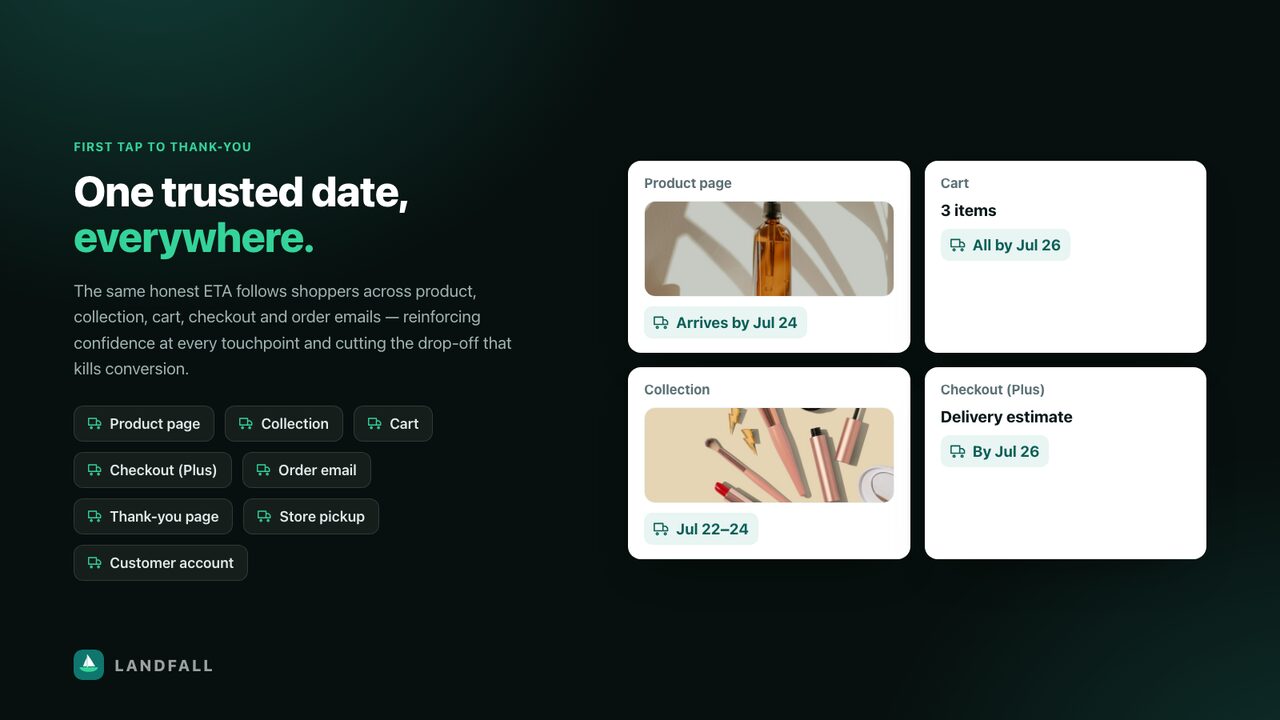
Product page — “Delivery date”
The core block, and the one to add first.
- Theme editor → Product template → Add block → Delivery date.
- Position it under the price or above add-to-cart.
- Configure the block settings below, then Save.
| Setting | What it does |
|---|---|
| Display | Date range (“Arrives between X and Y”, from p50→p80) or Single date (“Arrives by Y”). |
| Labels & joining word | Leave blank to auto-translate; type a value to force wording everywhere. |
| Date format | Jul 24, 2026 · Jul 24 · Fri, Jul 24 · 7/24/2026 |
| Custom message | Overrides the labels. Use [min_date], [max_date], [date]. |
| Out-of-stock prefix | Shown before the date on sold-out items, e.g. “Back in stock, then arrives by”. |
| Show shipping origin | Names the warehouse serving the shopper (needs Warehouses configured). |
| Show clock icon | Toggles the small icon. |
| Anonymous widget analytics | On by default. Powers the engagement metrics; turn off to disable entirely. |
| Reserved height | Reserves vertical space to keep layout perfectly stable. |
Expected outcome: “Arrives between Jul 22 and Jul 24” on every product with a modelled lane.
↑ Back to topCart — “Cart delivery date”
A whole-cart promise. Because an order arrives when its slowest item does, this block takes the maximum across all line items rather than showing a per-item date that would contradict itself.
Add it: theme editor → Cart template → Add block → Cart delivery date.
Expected outcome: “Everything arrives by Fri, Jul 26”.
↑ Back to topCollection — “Collection delivery”
A single honest banner for the visitor’s country on collection pages. A collection holds many products with different processing times, so Landfall shows a range based on your shop-wide processing default plus that country’s transit lane, rather than pretending to know an exact per-card date.
Options: label wording, clock icon, alignment and vertical padding.
↑ Back to topDelivery checker
An interactive block letting shoppers confirm the delivery window for their own location before they buy — it removes the “will it get here in time?” doubt at the moment it decides the sale.
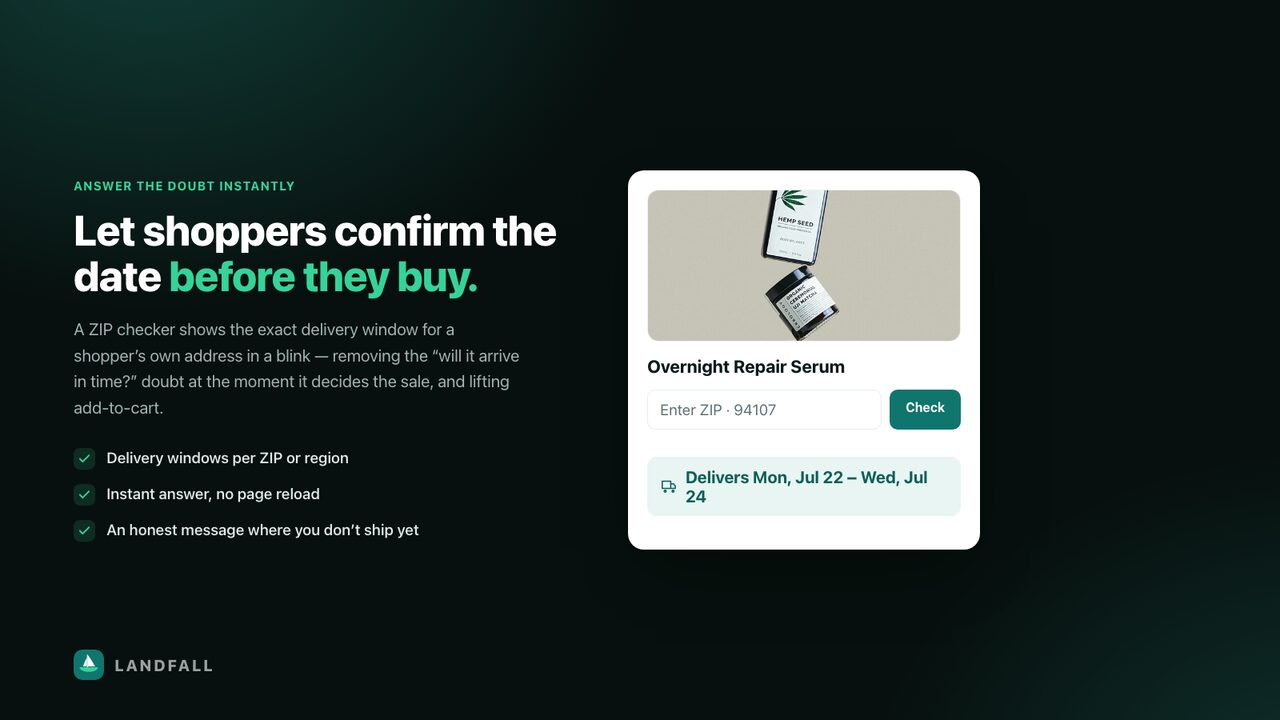
Add it: theme editor → Product template → Add block → Delivery checker. Configure an honest message for destinations you don’t serve.
↑ Back to topOrder-by cutoff
A same-day-dispatch countdown (“Order within 4h 12m for dispatch today”). It is driven by the Dispatch cutoff setting and is honest by design — once the cutoff passes it simply shows the next dispatch day rather than resetting a fake timer.
Set the cutoff first. Without a cutoff time in Settings the block has nothing to count down to.
Store pickup — “Pickup ready date”
Shows when an order will be ready to collect. Uses processing time only (no transit), so local shoppers get a realistic “Ready for pickup” date instead of a shipping estimate.
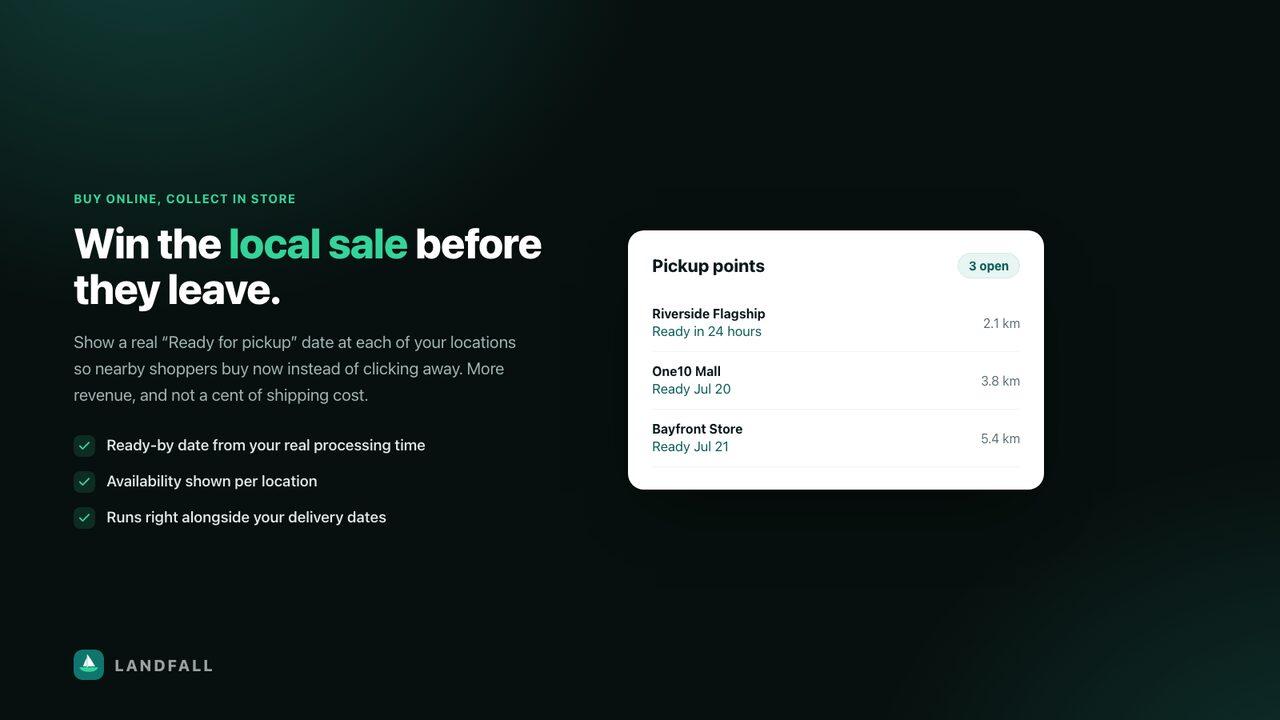
Requires: pickup enabled in Settings → Store pickup.
↑ Back to topMulti-language
Global-ready with zero setup. Labels and dates adapt to each shopper’s storefront locale in 57 languages.
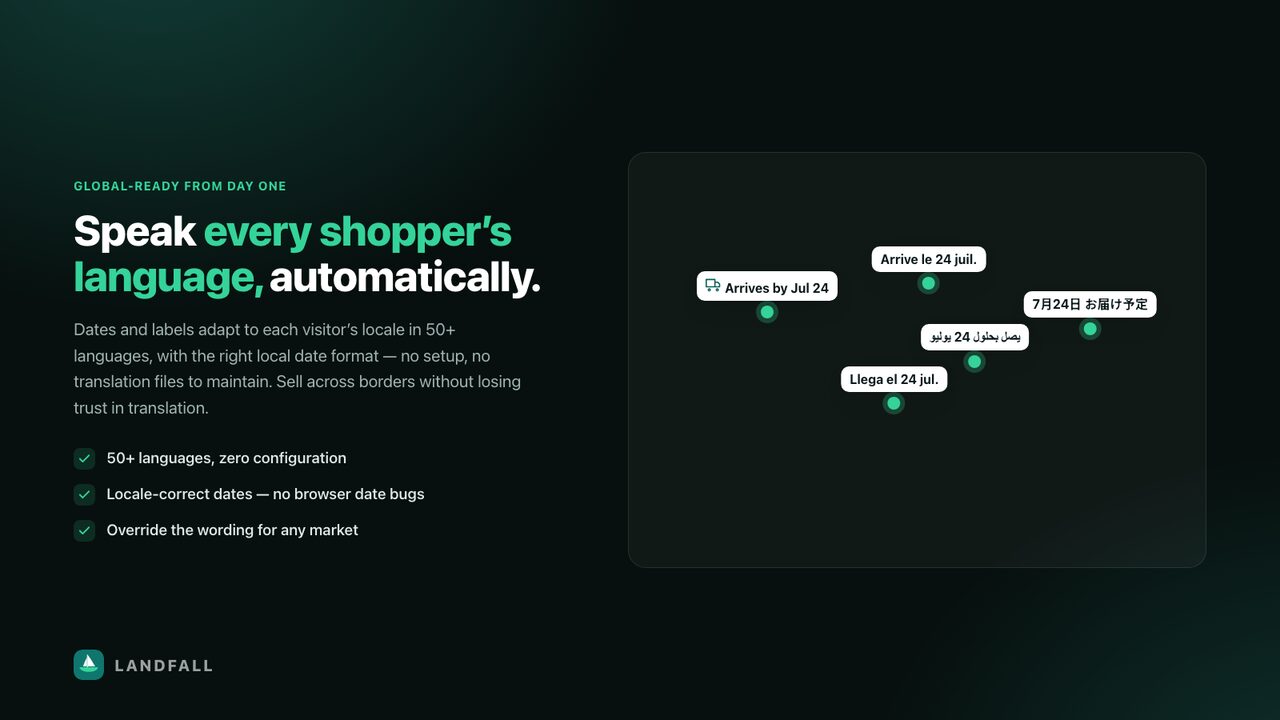
How it resolves
- Landfall reads the shopper’s active storefront locale.
- If you left the block label blank, it uses the built-in translation for that language.
- If you typed a label in the block, that wording is used everywhere.
- If you added a per-locale override in Settings, that always wins for that locale.
Dates themselves are localised by Shopify’s own date handling, so month and weekday names translate too — and because it’s server-side, there are no browser-locale date bugs.
Covered languages include French, German, Spanish, Italian, Portuguese (PT & BR), Dutch, Swedish, Danish, Norwegian, Finnish, Icelandic, Polish, Czech, Slovak, Slovenian, Croatian, Bosnian, Serbian, Hungarian, Romanian, Bulgarian, Greek, Turkish, Russian, Ukrainian, Lithuanian, Latvian, Estonian, Catalan, Galician, Japanese, Chinese (Simplified & Traditional), Korean, Thai, Vietnamese, Indonesian, Malay, Filipino, Hindi, Bengali, Tamil, Telugu, Marathi, Gujarati, Kannada, Malayalam, Punjabi, Urdu, Arabic, Hebrew, Persian, Swahili and Afrikaans.
↑ Back to topMessages & styling
Message placeholders
Custom messages (per block or per rule) support three placeholders:
| Placeholder | Resolves to |
|---|---|
[date] | The promise date (same as [max_date]) |
[min_date] | The optimistic end of the range (p50) |
[max_date] | The promise end of the range (p80) |
Styling
Use Settings → Custom CSS for global styling. The widget inherits your theme’s font and colour by default, so in most themes it already looks native.
↑ Back to topConfiguration recipes
Worked examples for common situations.
Made-to-order line
Goal: a handmade range takes 5 days to build before it ships.
- Rule → match
tag=made-to-order, zone* - Override processing days =
5 - Custom message =
Handmade to order — arrives by [max_date]
Outcome: those products show a later, clearly-explained date; everything else is untouched.
A carrier is running slow into one country
Goal: pad Germany while a backlog clears.
- Rule → match
all, zoneDE, override transit days =10, priority30
Outcome: German shoppers see a safer date. Remove the rule when the alert clears and the learned lane recovers on its own.
Hide dates on digital products
- Settings → Hide the widget → add tag
digital, then tag those products.
Outcome: no date on downloads or gift cards, and no rule-cap usage.
Two warehouses, different handling
- Settings → Warehouses:
US East | US,CA | 2Global | | 3 - Product block → enable Show shipping origin
Outcome: US/Canada shoppers get the US lane and see “Ships from US East”; everyone else falls back to Global.
Same-day dispatch urgency
- Settings → Dispatch cutoff =
14:00 - Add the Order-by cutoff block above add-to-cart
Outcome: a live countdown to same-day dispatch that never lies once the cutoff passes.
↑ Back to topBest practices
- Start with zero rules. Let the engine learn for a week before overriding anything — most “problems” resolve themselves as lanes fill in.
- Prefer a range over a single date when your transit is variable. It sets a realistic expectation and keeps your kept-rate high.
- Put the date near the buying decision — directly under the price or above add-to-cart converts better than in a tab or the footer.
- Watch “promises kept”, not just the date. If it drops below ~80%, your promise is too optimistic — pad the lane or switch to a range.
- Use tags, not per-product rules, for anything that applies to more than a couple of items.
- Leave the restock lead blank unless you genuinely know when stock lands. A hidden date beats a wrong one.
- Set your cutoff honestly. A cutoff you don’t actually hit will quietly wreck your accuracy.
- Re-check after peak. Carrier behaviour shifts in Q4; the engine adapts, but it’s worth reviewing alerts weekly.
Plans & limits
Every plan includes the learned dates, accuracy grading and all storefront blocks. The tiers differ on override-rule capacity.
| Plan | Override rules | Everything else |
|---|---|---|
| Free | 3 | Learned dates, grading, all blocks, analytics, 57 languages |
| Startup | 15 | As above |
| Growth | 50 | As above |
| Premium | Unlimited | As above |
Paid tiers include a 30-day free trial, and there is never a commission on your orders. Billing is handled by Shopify; change or cancel any time from the Plans page. Current prices are on the pricing section of our site and on the App Store listing.
↑ Back to topTroubleshooting
No date is showing on a product
Work through these in order:
- Thin lane. That destination hasn’t reached the sample floor yet (20 deliveries for the promise). Landfall deliberately shows nothing rather than guessing. Check Analytics → Transit by lane for a dash.
- Out of stock. With no incoming-inventory date and no restock lead set, the widget hides by design.
- Excluded. Check Exclude products and your Settings exclude tags.
- A rule is hiding it. Check Rules for a matching “hide” rule.
- Block not added. Confirm the app embed is on and the Delivery date block is in the product template.
The date looks too optimistic or too late
Check Analytics → Promise accuracy. If “promises kept” is high but the date feels late, switch the block to a range so the optimistic end shows too. If kept-rate is low, the promise is too tight — add a rule padding transit for that zone until the engine catches up.
Engagement metrics are all zero
The anonymous analytics beacon is a block setting. Confirm Send anonymous widget analytics is enabled on the Delivery date block, and that the widget is actually rendering on a page real shoppers visit. Numbers appear within a few minutes of live traffic.
Top products shows generic names
Product titles are resolved live from the Admin API. If a product has since been deleted, it falls back to a generic label. Live stores with existing products show real titles.
My translated label isn’t appearing
If you typed a label into the block settings, that wording is forced for every language. Clear the block label to let auto-translation resume, or add a per-locale override in Settings.
Changes aren’t showing on the storefront
Settings and rules publish on save. Refresh the product page (and clear any full-page cache your theme or CDN applies). The Live preview in Settings always reflects the current configuration.
Privacy & data
- No shopper tracking. The optional analytics beacon records aggregate counts only (views, hovers, clicks, add-to-cart) by day and device type. No personal data, no cookies, no cross-site identifiers, no profiles.
- No customer PII is stored. Landfall models shipping lanes from fulfilment timings and destination zones, not from people.
- Encrypted at rest and in transit. HTTPS everywhere; the app database sits on an encrypted volume.
- Opt out entirely by turning off Send anonymous widget analytics on the block.
Full details in our Privacy Policy and Refund Policy.
↑ Back to topSupport
Real help from the people who built it — never a ticket queue. Most questions get answered within a few hours.
- Email connect@talonoid.com
- FAQ · Privacy · Refunds